How to Organize a Big Delivery Route Without Losing Track of Any Stop
How to Organize a Big Delivery Route Without Losing Track of Any Stop
Past about 15 stops, a plain address list stops being useful. You're scrolling to find the one with the access code, squinting to remember which one was the fragile package, and re-typing an address into Google Maps just to get directions to something you already added an hour ago.
TL;DR: - Color-tag stops (fragile, signature required, afternoon only — whatever your day actually needs) so they're identifiable at a glance, not just alphabetically. - Tap any stop, on the list or the map, and you get one card with the address, an Edit button, and a Navigate button — no digging through menus. - A route stays exactly as you left it — notes, tags, colors, stop order — even if you close the app and come back to it later.
Why a Long Stop List Gets Messy Fast
Ten stops fit on one screen and you can hold all of them in your head. Thirty stops don't work that way. You start needing a system: which ones need a signature, which one has a gate code, which one you already tried and skipped. Most route planners hand you back a plain list of addresses and expect you to remember all of that yourself.
The result is the same every time: a driver stops at every red light to re-read notes scribbled in a separate messaging app, or worse, discovers the "leave with concierge" instruction after driving to the door.
Take a fairly ordinary 30-stop day: six of those are signature-required, four are fragile (glassware, electronics), and three have a specific afternoon window because someone's only home after 2pm. On paper that's four different things to track per stop — the address, whether it needs a signature, whether it's fragile, and what time window applies — multiplied by 30. A plain numbered list can't show any of that without you tapping into every single stop to check.
Color-Tag a Stop So It's Identifiable at a Glance
Every stop in MiliRoute can carry one or more colored tags — Fragile, Signature, Afternoon, or anything specific to how you run your day. They show up as small colored chips right on the stop, and the same color follows that stop onto the map pin, so a fragile-package stop looks different from a normal one before you've even opened it.
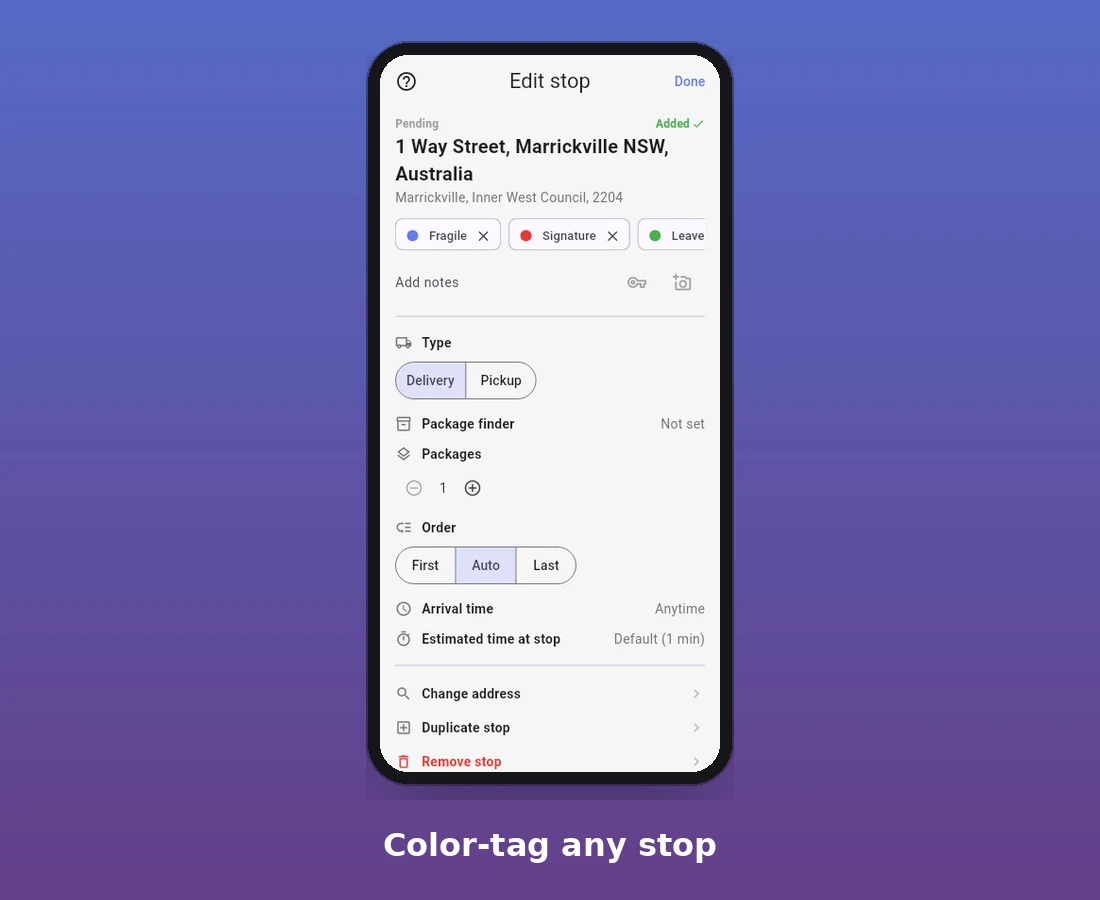
Tags aren't a one-time setup either. Add a new one from any stop, and it's available for every stop after that — the palette builds up over time the way a real delivery day actually varies, instead of forcing every stop into the same three built-in categories.
One Tap to Edit or Navigate — Right From the Map
Tapping a stop's pin on the map used to mean squinting at a plain address label with nothing else on it. Now it opens a small card with the stop number, the full address, and two buttons: Edit, which jumps straight into that stop's details, and Navigate, which hands the address straight to your phone's own maps app for live, turn-by-turn directions.
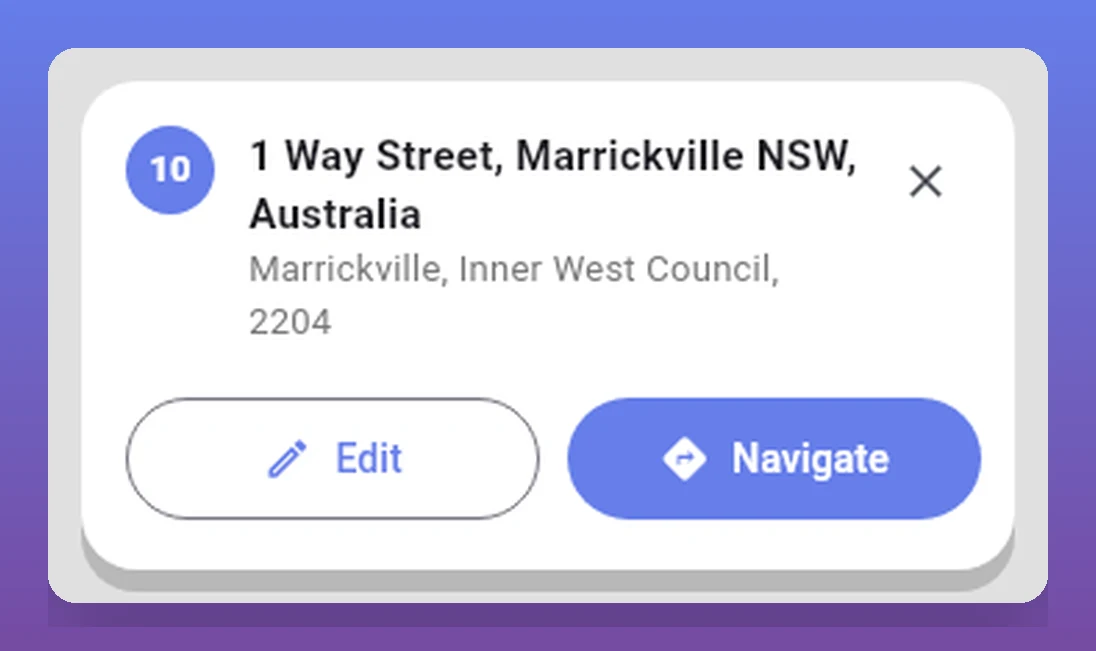
That second button matters more than it sounds like it should. Re-typing an address you already added — just to get directions to it — is exactly the kind of small friction that adds up over a 40-stop day. One tap from the map (or the same button next to the stop in your list) gets you moving instead.
Always Know What's Optimized and What Isn't
Add a stop after you've already optimized a route, and it's easy to lose track of whether the order on screen actually reflects that new stop yet. MiliRoute shows an "Optimization pending" banner the moment something changes that the current order doesn't account for, so you're never driving a route that quietly went stale the second you added one more address.
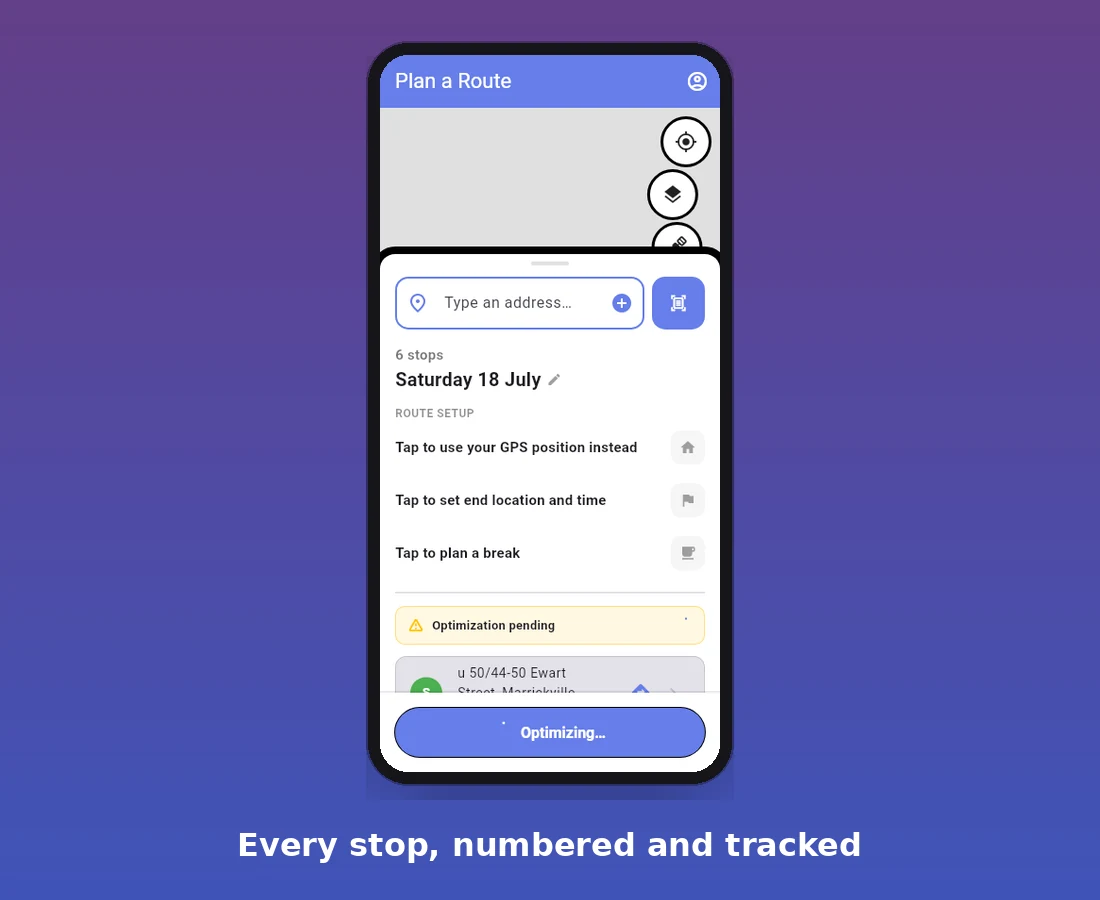
Every stop is numbered in that list too — not just alphabetically sorted, but in actual visit order, first stop to last — so a glance down the list tells you exactly where stop 12 sits relative to stop 13, before you've optimized anything at all.
A System That Holds Up Whether You're Planning or Driving
The point of tags, numbers, and one-tap navigation isn't any single feature — it's that they work together as one system instead of three separate things to remember. Planning at your kitchen table, you tag the fragile and signature stops as you add them. On the road, a glance at the map tells you which color pin is coming up next, and one tap gets you turn-by-turn directions without ever opening a second app. If a stop gets added mid-route, the pending banner tells you the order hasn't caught up yet, so you optimize again instead of guessing.
None of that requires memorizing which stop was which — the color, the number, and the two buttons on the quick card carry that information for you.
Nothing Gets Lost If You Close the App
A route you're still building — stops you've tagged, notes you've added, an order you've been adjusting — used to only exist for as long as the app stayed open. Close it to take a call, get a low-battery warning, or just put the phone down for the night, and you'd come back to a blank planner and have to dig through Route History to find your way back to it.
That's fixed now: the whole in-progress route — every tag, every note, every stop in whatever order you left it — is saved on the device as you go and restored automatically the next time you open the app. Pick a route up on Monday morning exactly the way you left it Friday afternoon, without any extra steps.
FAQ
Do tags sync between the phone app and the website? Yes. Tags and their colors are part of the same saved route, so a stop tagged on your phone shows the same way if you pull that route up on the web dashboard.
What happens if I tap Navigate but haven't optimized yet? Navigate just hands the address to your maps app for directions to that one stop — it works the same whether the route's been optimized or not.
Can a stop have more than one tag? Yes. A stop can carry as many tags as it needs — a fragile, signature-required afternoon delivery can be all three at once.
Does the "Optimization pending" banner mean my route is wrong? No — it just means a change (a new stop, a toggled setting) happened after the last optimize, so the order on screen hasn't accounted for it yet. Optimize again and it clears.
Will my tags and notes still be there tomorrow if I don't finish the route today? Yes. The route you're building is saved on the device as you go, not just once you hit Optimize — closing the app doesn't lose it.
Next Step
If your delivery days involve more stops than you can keep straight in your head, MiliRoute's free plan includes tags, one-tap navigation, and a route that's always saved — try it with tomorrow's list.